The goal of any project is not just its successful completion but its execution in an orderly fashion. But what can assure such order within the inevitable messy components of a project? The answer lies in powerful Project Management tools such as Trello, whose user-friendly interface and Kanban-style boards make task organization and collaboration a breeze.
It's like a digital command center for organizing and streamlining workflows. This blog explores What is Trello, along with its dynamic features, diverse applications and more. So read on, unlock Trello's full potential and ensure project excellence at every turn!
What is Trello?
Trello is a visual Project Management and collaboration tool designed to help individuals and teams organize their work in a clear, structured way. It uses boards, lists, and cards to represent tasks and workflows, allowing users to see what needs to be done, what is in progress, and what has been completed at a glance. This visual layout makes Task Management more intuitive and less overwhelming.
Each Trello board can be customized to suit different projects, whether for business tasks, personal goals, or team collaboration. You can add due dates, labels, checklists, attachments, and comments to cards, making it easy to manage details and communicate effectively.

Why Trello is Used?
Trello essentially serves as a digital bulletin board that simplifies task and Project Management. Here are the reasons why Trello is so widely used:
1) It helps eliminate the need for sticky notes, missed deadlines, and cluttered email inboxes.
2) It provides an intuitive platform for handling tasks and projects.
3) It allows team collaboration by inviting members to work together efficiently.
4) It's accessible from any location with an internet connection, ensuring flexibility on the go.
5) It's ideal for freelancers, small business owners, and Team Leaders to stay organized and achieve goals.
Key Features of Trello
Trello is packed with features to make Project Management enjoyable and efficient. Here are some of the key features of it:
1) Boards, Cards, and Lists
Trello is basically built around boards, lists, and cards that visually represent projects and tasks. Boards act as projects, lists show workflow stages, and cards represent individual tasks. This clear visual structure helps users quickly understand progress and task status.
2) Activity Log
The feature of activity log records every change made to a board, including updates, comments, and task movements. It provides transparency and helps team members stay aware of ongoing progress. This supports open communication and teamwork across all levels.
3) Power-ups
Power-ups are add-ons of Trello that enhance board functionality. They enable features such as automation, custom fields, reporting, and time tracking. Power-ups allow users to tailor Trello to suit specific projects and business needs.
4) Deadline Management
With Trello, users can set due dates on cards to manage timelines effectively. It highlights upcoming and overdue tasks, helping teams stay on schedule. This feature ensures milestones are met and reduces the risk of missed deadlines.
5) Calendar View
The calendar view in Trello displays tasks based on their due dates, offering a clear overview of schedules and timelines. It helps users prioritize work and manage workloads more effectively. This feature is especially useful for deadline-driven projects.
6) Subtasks and Checklists
Each card in Trello includes checklists and subtasks, allowing large or complex tasks to be broken down into smaller, manageable steps. This improves clarity and makes progress easier to track. Completing items one by one boosts efficiency and focus.
7) Task Allocation and Notifications
Trello allows tasks to be assigned to one or more team members, clearly defining responsibility. Automatic notifications are sent whenever cards are updated, commented on, or near deadlines. This keeps everyone informed and encourages collaboration and accountability.
8) Attachments and Integrations
When people use Trello, they can attach files, documents, and links directly to cards for easy access. It also integrates smoothly with tools such as Google Drive, Slack, GitHub, and Dropbox. These integrations centralize resources and improve workflow efficiency.
9) Search and Filtering
Trello’s search and filtering tools make it easy to locate specific cards, boards, labels, or team members. Users can filter tasks by due dates, labels, or assigned members. This keeps even large boards organized and easy to navigate.
Manage both simple tasks and complex projects with our
Wrike Training
– Register today!
Components of Trello
Now that you’ve explored What is Trello and how it is used by Project Managers, let's explore some of the features that make Trello as a powerhouse of Project Management:
1) Trello Boards
Trello uses the Kanban system, which allows users to create boards for projects or workflows. These boards display project details such as tasks, timelines, owners, and progress, organized into columns (e.g., To-Do, Doing, Done). Team members can collaborate, share, and update these boards while the board menu controls access, automation, and activity tracking.

2) Trello Lists
A Trello list organizes tasks within a board, often based on progress. Through these lists, you can track workflows by storing details and moving cards across columns to reflect project stages.
3) Trello Cards
A Trello card is the smallest individual unit within a Trello board and represents a task or idea essential to a project. Users can create, customize, and group unlimited cards under lists, tracking progress by dragging cards between columns. Cards can be added individually or in bulk by copying items from a spreadsheet. This feature significantly simplifies task management and enables seamless collaboration and progress tracking.
Here are some details you can add to your cards:
1) Members
2) Due dates
3) Attachments
4) Checklists
How to Use Trello for Effective Project Management?
Trello is an easy-to-use tool offering a simple and intuitive interface. Now, let's explore the key steps to get started and unlock Trello's full potential in Project Management:
Step 1: Sign up on Trello
First-time users can visit Trello's official website and sign up. You'll see the following screen when you log in for the first time. You'll see an option to create a new board under the Personal Board tab.

Step 2: Create a Board in Trello
The following steps will help you to create a board:
1) Create the new board option under the Personal Boards tab
2) Name the board, and you can also choose a background pattern or color that can also be altered later.
3) You can pick the team you'd like to give access to a board

Step 3: Create a Team
You must set up a team for a professional purposes:
1) Click on the "create a team" option to set up a team for professional purpose
2) Provide a team name, select its type, and add a brief description
3) Click "Continue" to proceed
4) Go for the invite option to add team members by entering their email IDs
5) Click the "Send Invitation" button, and team members will receive an invitation to join Trello.
Sign up for our
Slack Certification
and boost your expertise as a Project Manager or IT Administrator!
Step 4: Create Lists in Trello
You create lists as per your requirement, such as these three lists:
1) To Do
2) In Progress
3) Done
You can even have a list of individual members of your team. Here's how to create a list:
1) Open the board, and below the board name, click the "Add a list" option
2) Name the list and click "Add List"
3) You will find an option to add a card below your list
Step 5: Create Cards in Trello
Here's how you can add a card:
1) Click “Add a card” below the list where you want to create a task
2) Enter a title for the card and select “Add card” to save it
3) Click on the card to open it and add a description or comments for team members
4) Add checklists to break the task into smaller steps
5) Use labels to categorize or prioritize the task
6) Attach files or links directly to the card for easy access
Step 6: Assigning Cards and Giving Due Dates
Trello allows you to add members and due dates to cards, making managing tasks within a team easier. Assigning members to a card ensures clarity on who is responsible, and adding multiple members keeps everyone updated on a specific task. Due dates help track task deadlines effectively.

To assign members to a card, take these steps:
a) Click on the card you want to update
b) Select the "Members" option on the right
c) Search and click on team members' names to add them
To add a due date, you can follow these steps:
a) Click on the card requiring a due date
b) Select the "Due Date" option on the right
c) Choose a date and time from the calendar, then click "Save"
Bring the power of Cloud into your Project Management strategies – Sign up for our
Airtable Training
now!
Step 7: Add Labels to Cards
Trello lets you use colored card labels to categorize tasks or identify their group. Multiple labels can also be added to a single card for better organization. Here are the steps to add labels to a card:
a) Click on the card you want to label
b) Select the "Labels" option on the right
c) Choose a label from the available colors or tap the “edit icon” to create a new one
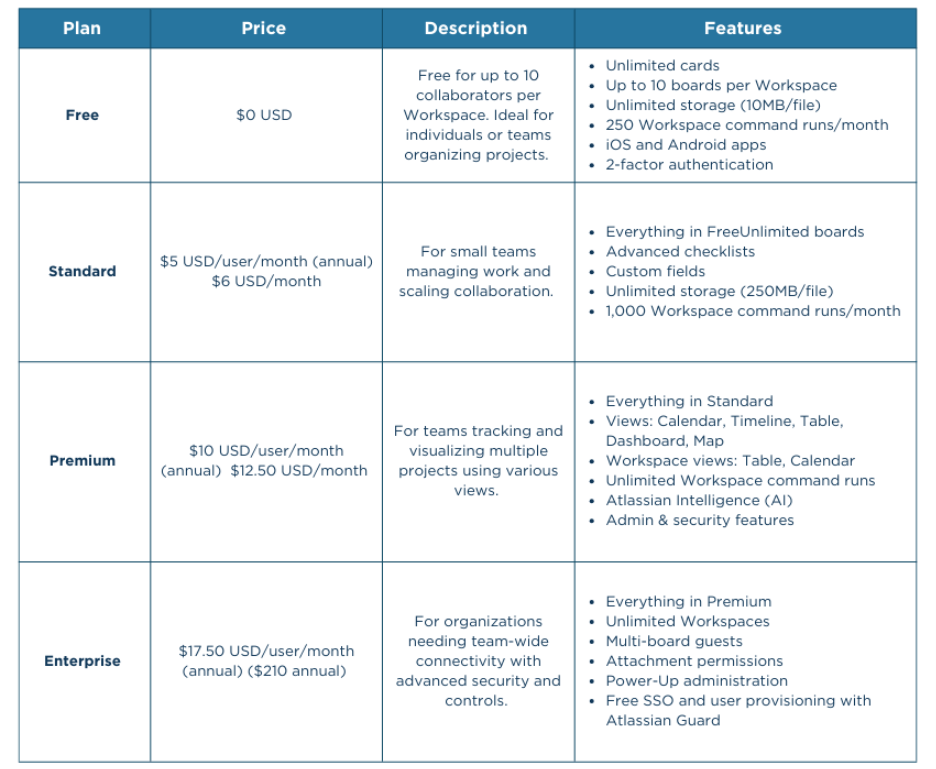
Trello Pricing
The following table summarizes the Trello Pricing Plans:
Conclusion
In conclusion, Trello is a game-changer for organizing tasks and boosting collaboration. With its versatile features and intuitive design, it adapts to any project, big or small. Understanding What is Trello and mastering its features helps you stay productive and turn the most ambitious ideas into actionable results.
Automate workflows and manage deadlines like never before in our comprehensive
Asana Certification
- Sign up now!


 Back
Back

 Topics

 Courses


 10 Aug 2026

 Veronica Davis