Work no longer happens in long email threads and endless meetings. Slack changes how teams talk, share and collaborate by bringing conversations, files and tools into one lively workspace. From quick questions to project updates and integrations that do the heavy lifting, Slack keeps work moving without the clutter.
From channels and shortcuts to integrations that automate the everyday, this blog explores What is Slack, how it works and simple ways to use it smarter. So read on and help your teams stay focused, connected and productive in fast-moving workplaces.
What is Slack?
Slack is a team communication platform designed to bring workplace conversations into one central space, thus reducing the need for email. It enables organizations to organize discussions through channels, exchange private messages and share files seamlessly. With integrations across numerous workplace apps, Slack helps teams manage collaboration and workflows from a single, connected platform.

![]() What is Slack Used For?
What is Slack Used For?
Slack can streamline your team’s communication by consolidating email, text messaging, and instant chatting into one platform. With both desktop and mobile versions, Slack allows your team to interact and coordinate their work seamlessly, whether they’re in the office, at home or out in the field. Here are some key uses of Slack:
1) Unified Communication: Slack can replace email, text messaging and instant chat, all within one platform.
2) Information Management: Keep important information out of your volunteers’ personal email accounts.
3) File Sharing: Share files and documents, including images, written content, and videos, with your teammates.
4) Notifications: Mention teammates by name to send them notifications on their computer or mobile phone. You can also mention a group’s name, making it function like a walkie-talkie.
5) Voice and Video Calls: Start a voice or video conference call with your teammates.
6) Reminders and Calendars: Set reminders for yourself and others using built-in reminders, Google Calendar, and various to-do lists to track upcoming events and deadlines.
7) Community Building: Create a fun and accessible community for your volunteers and staff, whether they are in the office or not.
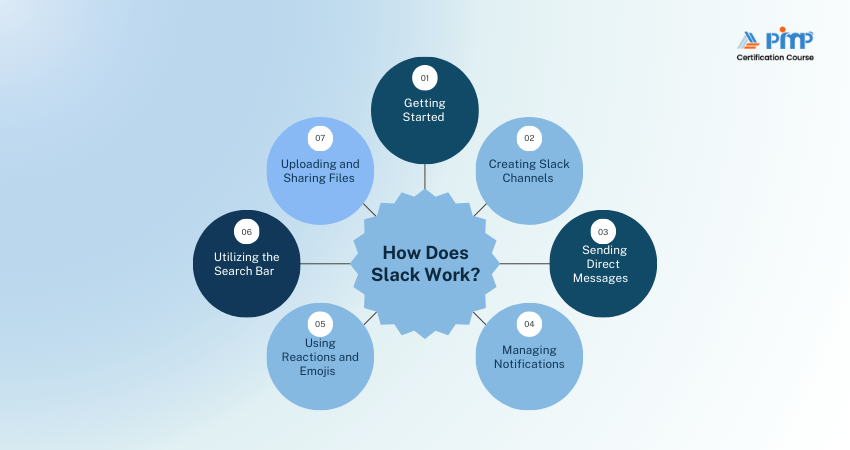
How Does Slack Work?
These points illustrate the workings of Slack:
1) Getting Started
New users can begin by creating an account and familiarizing themselves with the workspace structure. Slack’s onboarding process is designed to help users quickly grasp navigation, basic commands, and how to join or create channels.
2) Creating Slack Channels
One of the first steps in setting up Slack is creating channels for specific topics or teams. Channels help organize discussions and can be used for general announcements, project updates, or department-specific communication.
One of the initial steps involves setting up Slack is to create channels for specific topics or teams. Channels organize the discussions and can be utilized for general announcements, project updates or department-specific communications.
3) Sending Direct Messages
It also permits you to send direct messages to all of your teammates in the workspace. Here, you also can attach files and look for the message by keywords in the entire archive of the selected conversation.
Top messages will be shown by default on the left side of the chat window. If you wish to begin a conversation with a new person, you just type their name next to the plus sign besides Direct Messages in the sidebar.
4) Managing Notifications
To prevent notification overload, users can manage alerts across various channels. Options include muting, snoozing or customizing notifications based on their urgency or importance.
5) Using Reactions and Emojis
Reactions and emojis add a dynamic element to communication, enabling users to acknowledge messages or provide feedback without needing to send a separate reply. They offer a quick way to express agreement, appreciation, or status updates within a chat.
6) Utilizing the Search Bar
The search bar of Slack provides different ways to find messages, files and users. The advanced filters improve the search precision, which allows the users to locate specific items quickly.
7) Uploading and Sharing Files
Users can easily upload files directly to Slack, making it a handy platform for sharing documents, videos, and images. Files are stored within channels, ensuring easy access and centralized information.
Top Slack Features
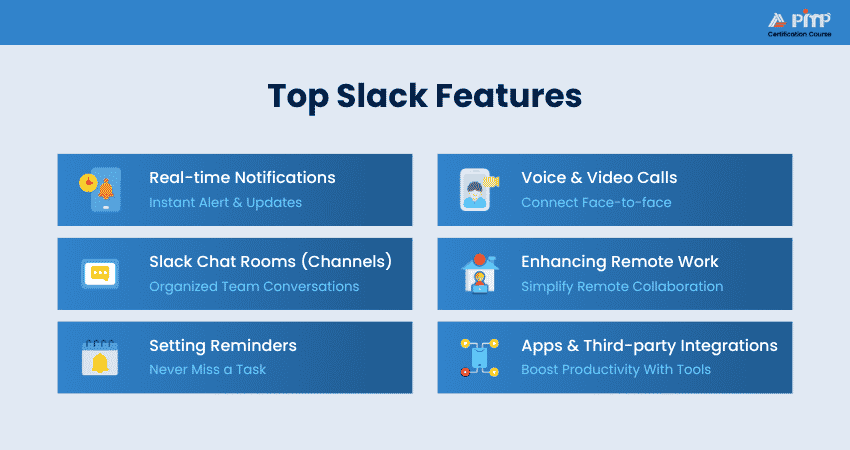
Here are the features that make Slack the office powerhouse that it is:
1) Real-time Notifications
Instant notifications play a key role in improving communication efficiency. When you are mentioned in a channel or tagged directly in Slack, you receive an instant alert, ensuring timely responses. In addition, many channels are created purely for informal conversations and team engagement.
2) Slack Chat Rooms (Channels)
One of Slack’s core features is its channels, commonly known as chat rooms. Channels enable teams to organize discussions by projects, departments, or specific topics. This setup simplifies finding past conversations, relevant files, and links within a single channel, reducing miscommunication and keeping discussions organized.
Channels can be private, restricted to a selected group, or public for open team discussions, offering flexibility for different needs.
3) Setting Reminders
Slack also includes a built-in reminder feature that helps teams stay organized and on track. Important meetings, deadlines or follow-ups are less likely to be missed, which protects work quality. Reminders can be set for messages in any channel, whether client-facing or internal, as well as for direct messages.
4) Voice and Video Calls
Slack allows you to make video and voice calls with colleagues or clients who use the platform, anytime and from anywhere. With one click, you can share your screen, exchange ideas instantly and resolve tasks faster through real-time collaboration.
5) Enhancing Remote Work
It is apparent that Slack has been designed and developed for teams that work remotely. Elements such as channels, files, and connectivity to Project Management software guarantee that every worker is furnished with the necessary tools in their remote place.
The fact that Slack is a flexible platform that can be set up as a central hub of communication makes it easy to arrange for the corresponding needs of employees working in the office and remotely.
6) Simplify Remote Collaboration
One of the best things about Slack is that it simplifies remote collaboration by allowing teams to create multiple channels and invite people from within or outside the organization. Information shared in a channel is visible to all its members, while access remains restricted to authorized participants only.
7) Apps & Third-Party Integrations
Slack integrates with a diverse range of tools to help teams stay informed without constantly switching between applications. By connecting tools to specific channels, everyone gains real-time visibility into tasks, updates and activities happening across those platforms.
Handle any project with confidence and efficiency with the right tools - sign up for our Project Management Tools Courses now!
How to Get Started With Slack?
You can follow these proven steps to set up and manage your own Slack workspace:
a) Visit the official Slack website and sign up using your email address.
b) Choose a name for your Slack workspace.
c) Customize your workspace URL.
d) Create a unique username.
e) Add the email addresses of those team members you want to invite.
f) Your Slack workspace will then open in a new browser tab.
g) Complete the short tutorial to familiarize yourself with the basics.
How Different Departments Use Slack in Business?
Now let’s look at how different departments harness the power of Slack in business:
1) Sales Teams
Sales teams juggle pipelines, forecasts, approvals and constant customer updates. Slack brings conversations, customer context and deal discussions into one place, thus helping teams collaborate in real time. This keeps information current and moves deals forward together without switching between tools.
2) Customer Support
Support teams rely on fast responses and clear communication to maintain customer trust. Slack enables smoother collaboration across agents, quicker issue escalation and shared knowledge. This helps teams resolve queries efficiently and deliver a more consistent support experience.
3) Marketing Teams
Marketing teams need speed, alignment, and clarity when managing campaigns and approvals. Slack acts as a central hub for discussions, feedback, and decision-making. This allows teams to coordinate campaigns, respond to leads promptly and adapt quickly to changing priorities.
4) Finance Teams
Finance teams handle approvals, compliance and complex business activities, and it demands accuracy and efficiency. Slack streamlines the communication process, reduces back-and-forth and simplifies workflows around budgeting, expenses and major business initiatives.
5) IT Teams
IT teams support secure operations across increasingly hybrid workplaces. Slack connects the right people to the right information. This helps IT teams respond faster to incidents, manage requests more efficiently and create a more connected employee experience.
Best Apps and Integrations for Slack
Here are some of the best apps and integrations for Slack:
1) Markup Hero
Markup Hero lets you capture, annotate and share screenshots or files directly in Slack. With just one click, you can preview annotated images or PDFs inside conversations and keep markups in your history for later editing.
2) Trello
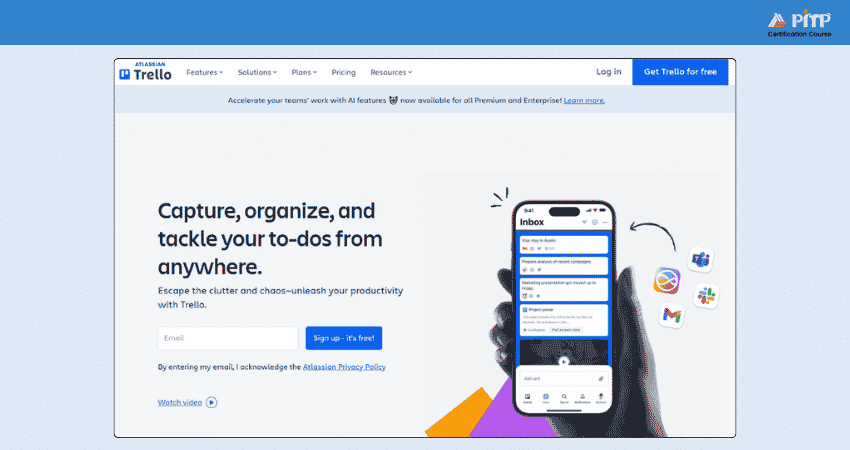
Trello’s Slack integration lets you create and manage Trello cards and boards from within Slack. Pasting a Trello link previews cards and details, thus reducing app-switching and keeping task context in conversations.
3) HubSpot
HubSpot’s Slack app brings CRM actions into Slack, enabling you to receive notifications, search or create contacts, deals, tasks or tickets, and share reports without leaving your workspace.
4) Mailchimp
Mailchimp’s Slack integration notifies you about audience activity and campaign status right in your Slack channels. You can choose which lists and events to monitor, keeping teams updated on Email Marketing performance.
5) Simple Poll
Simple Poll lets you create team polls and surveys in Slack with a single command. Gather feedback quickly without leaving Slack, schedule recurring polls, and use multiple question types for engagement and decision-making.
6) Intro
Intro helps teams coordinate meetings by sharing availability directly within Slack. It reduces back-and-forth scheduling and keeps conversations focused and efficient.
Level up your workflow with the power of Wrike. Sign up for our Wrike Training now and ensure smarter workdays for your team!
Five Expert Tips to Improve Your Slack Experience
Here are five practical tips to help you use Slack more effectively and get more value from everyday conversations:
1) Pinning Important Messages and Files
Keep essential information easy to find by pinning it within channels:
a) Pin key messages that include important instructions or announcements
b) Pin commonly used files or documents for quick reference
c) To pin an item, select the “More actions” icon (three dots) next to a message or file and choose “Pin to channel”
2) Using Keyboard Shortcuts for Faster Navigation
Slack offers a range of keyboard shortcuts to speed up daily tasks:
a) Use Ctrl + K (Windows/Linux) or Cmd + K (Mac) to jump to any conversation
b) Press Ctrl + Shift + Y (Windows/Linux) or Cmd + Shift + Y (Mac) to start a new direct message
c) View all available shortcuts by pressing Ctrl + / (Windows/Linux) or Cmd + / (Mac)
3) Advanced Search Techniques
Make finding past messages quicker with Slack’s advanced search options:
a) Use search operators such as from, in, and has to narrow results
b) Save frequently used searches in your browser for instant access
c) Apply filters to sort the results by date, relevance or channel
4) Customizing Notifications
Reduce distractions by tailoring your notification preferences:
a) Set Do Not Disturb hours during non-working times
b) Adjust channel-level notifications to receive only priority updates
c) Add keywords so you are alerted only when specific terms are mentioned
5) Automating Tasks With Slack Bots
Use Slack bots such as Slackbot, Workflow Builder or third-party tools like Zapier to automate routine work. These bots can help you:
a) Schedule reminders and recurring updates automatically
b) Pull reports or alerts from connected apps into Slack
c) Run regular check-ins or polls with your team
Conclusion
Understanding What is Slack is important because It's an innovative platform that redefines how teams communicate and collaborate. By centralizing all your tools and conversations, Slack amplifies productivity and streamlines workflows. So embrace the power of Slack and transform the way you work together.
Empower your leadership skills with our Program Management Professional (PgMP)® Certification Training - Sign up today!


 Back
Back

 Topics

 Courses


 10 Aug 2026

 David Walter